Folder Marker Pro
Version: 4.9.1
File Size: 36.8 Mb
Price: $34.95
No Malware or Spyware!
Everyday
Folder Icons
Version: 1.0
File Size: 835 Kb
Price: $19.95
Extra
Folder Icons
Version: 1.0
File Size: 722 Kb
Price: $19.95
x32 or x64 editions
How to Change Folder Icon or Folder Color?
If you are like any computer user, then you have plenty of folders where you keep Word documents, spreadsheets, pictures, music and an endless list of other things. Sometimes the folders are so many that they may literally cripple your productivity and you may be in a devil of a time trying to find the folder with the document you need at the moment. Plus, with so many similar-looking yellow folders it is easy to make a mistake and carelessly delete an important folder. The chaos too many folders can create can be staggering!
Of course, Microsoft has thought about the way to tackle the too-many-same-looking-folders problem by allowing users to change the icon of a folder with a new one that will make the folder visually stand out of the crowd. But the way users can do this is needlessly complicated as users have to go down a long 'click-and-open road' through Windows dialogs before they can actually change the icon folder. Take a look at the following:
a. How to change folder icons in the standard Windows way
- First, you should select and right-click the folder
- Secondly, select Properties from the drop-down menu
- Thirdly, select Customize tab in the dialog
- Then click on Change Icon… button
- Select an icon from the suggested list
- And change the icon by clicking on OK and then Apply button
Hem. Six steps to change a folder icon are too many!
Hopefully, there is one small utility that can do the same in a very different manner than Windows, actually in ONE click, and users will have a better choice of options and icons. The utility is called Folder Marker Pro and it can be downloaded at https://foldermarker.com/en/folder-marker-pro/?discount=HowToArticle.
b. How to change folder icons in the Folder Marker's way
- Select an icon from the right-click menu of a folder.
That's it! Only one step to change a folder icon! Isn't that cool or what? Using Folder Marker couldn't be simpler. The application's designers wanted to make the ability to change a folder icon or a folder color as painless as possible and they've done an outstanding job. With Folder Marker, you'll mark out folders with the same simplicity as you would copy or cut a folder by selecting this option from the right-click menu of the folder.
Now there is no need to make a 'round-the-world journey' through multiple dialogs. There is even no need to run Folder Marker itself! Simply select the folder you want to mark out, select a new icon from the right-click menu and it'll be assigned instantly. You can change icons not only for one folder, but also for several folders all together with the same one-click approach. Just select the folders with the mouse and choose an icon from the right-click menu.
Folder Marker offers a great choice of image-coded and color-coded folder icons that can be used to categorize folders by different parameters. For example, you can mark out folders by:
- priority (high, normal, low)
- project completeness level (done, half-done, planned)
- stage of development (one, two, three, four, etc.)
- type of information stored in them (work, important, temp and private files)
- status (approved/rejected/pending)
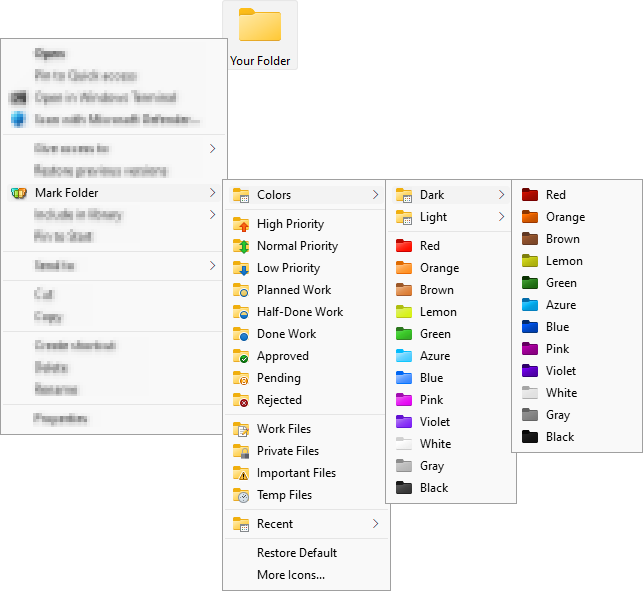
Picture 1: Folder Marker offers a great choice of image-coded and color-coded
folder icons
The icons in Folder Marker are self-explanatory and include many colors, dark and light colors, many categories, and they carry letters and numbers. Of course, the default set of icons can be expanded with the unlimited number of new icons that you have downloaded from the internet, or created in the icon editor yourself. Folder Marker can assign icons to a folder from a wide array file formats, such as ICO, ICL, EXE, DLL, CPL or BMP.
The folders that have been assigned new icons can be made distributable. It means a Folder Marker's icon will remain unchanged even if the folder is copied onto a removable device, such as a USB-key, moved to another computer or burned onto CD or DVD. To make a folder icon distributable, it is necessary to select the 'Make customized folder distributable' option. Besides, there is one more interesting option in the program. It allows you to apply the selected icon to all subfolders inside the folder.
If for some reason you want to remove the icons that have been added using Folder Marker, you can easily do this by using the 'Roll Back All Changes' option. Select this option and the icons will return to their original standard look instantly without any problems.
You can customize the Folder Marker's menu to your own needs by adding new menu items and categories and assigning icons to them. Customization takes nothing but a few clicks on the icons you'd like to add or remove, and separators you'd like to add to organize the menu. The menu customization option is great because you can add only those icons that you'll actually use on a regular basis and remove those that are useless for your everyday computational routine. Besides, customization lets you personalize the desktop in the way you want it to see and the way you will find yourself comfortable with, working with such a menu.
Initially the menu customization option was added to change the LEGEND OF DEFINITIONS. For some users, for example, it is difficult to remember what a blue folder means and what makes it different from a green one. This is why they may have the menu where it's directly written that blue folders are for design projects and green ones are with the programming code.
Folder Marker is a cute little desktop enhancement tool that's worth its virtual weight in the agony and frustration it may save you from when you find it difficult to find the folder you need. Many people use the program to change folder icons just because Folder Marker made it fun. Below you can read what they think about the program.
"My eyesight isn't particularly good, but when this small program came into existence, it made my life ten times better. Keep it up! And thanks," Mark
"Folder Marker is one of those little utilities that once you have it you wonder how you ever did with out it. It lets you mark your Windows Explorer folders in a couple of different ways, either using the context menu (right click) or by starting the Folder Marker program and browsing," Sharewarejunkies.com
"Hello, this is a program I've always looked for since 2001 and only this week discovered your great app to change folder colors. This is my favorite tweak for Windows Explorer," Gary Greenwald
"Many THANKS, an excellent program, keep up the good work," Unique
With its changing folder icons function, Folder Marker can be used to customize old fashioned folder icons with new, more exciting and polished Windows Vista icons. A bunch of free Vista icons can be found here: http://www.iconarchive.com/tag/vista. Download the icons and Folder Marker now and give your desktop a trendy Vista look with new folder icons. Be trendy! Everyone will be jealous!
Download Folder Marker Pro now to see how it may change your computational habits for better: https://foldermarker.com/FolderMarker_Pro.exe